First Launch
Starting the zlaunch daemon and binding it to a key
Starting the Daemon
zlaunch uses a daemon architecture—this enables instant response times and continuous clipboard history monitoring. Start it with:
zlaunchThe daemon runs in the background and creates a socket at $XDG_RUNTIME_DIR/zlaunch.sock (typically /run/user/<uid>/zlaunch.sock).
To stop the daemon: zlaunch quit
Autostart
Add zlaunch to your compositor's autostart:
Add to ~/.config/hypr/hyprland.conf:
exec-once = zlaunchAdd to ~/.config/niri/config.kdl:
spawn-at-startup "zlaunch"Home Manager:
The Home Manager module exposes an option to autostart zlaunch using a systemd user service.
By default, the service is started at graphical-session.target, but this can be configured to start at your compositor's session target, such as hyprland-session.target.
{
  imports = [
    zlaunch.homeManagerModules.default
  ];

  services.zlaunch = {
    enable = true;

    systemd = {
      enable = true;

      autoStart = true; # default
      target = "graphical-session"; # default
    };
  };
}
Keybind Setup
Use zlaunch toggle to show/hide the launcher.
bind = SUPER, Space, exec, zlaunch togglebinds {
Mod+Space { spawn "zlaunch" "toggle"; }
}- Open System Settings → Shortcuts → Custom Shortcuts
- Create a new shortcut
- Set command to
zlaunch toggle - Assign your preferred key
Test It
Start the daemon
zlaunch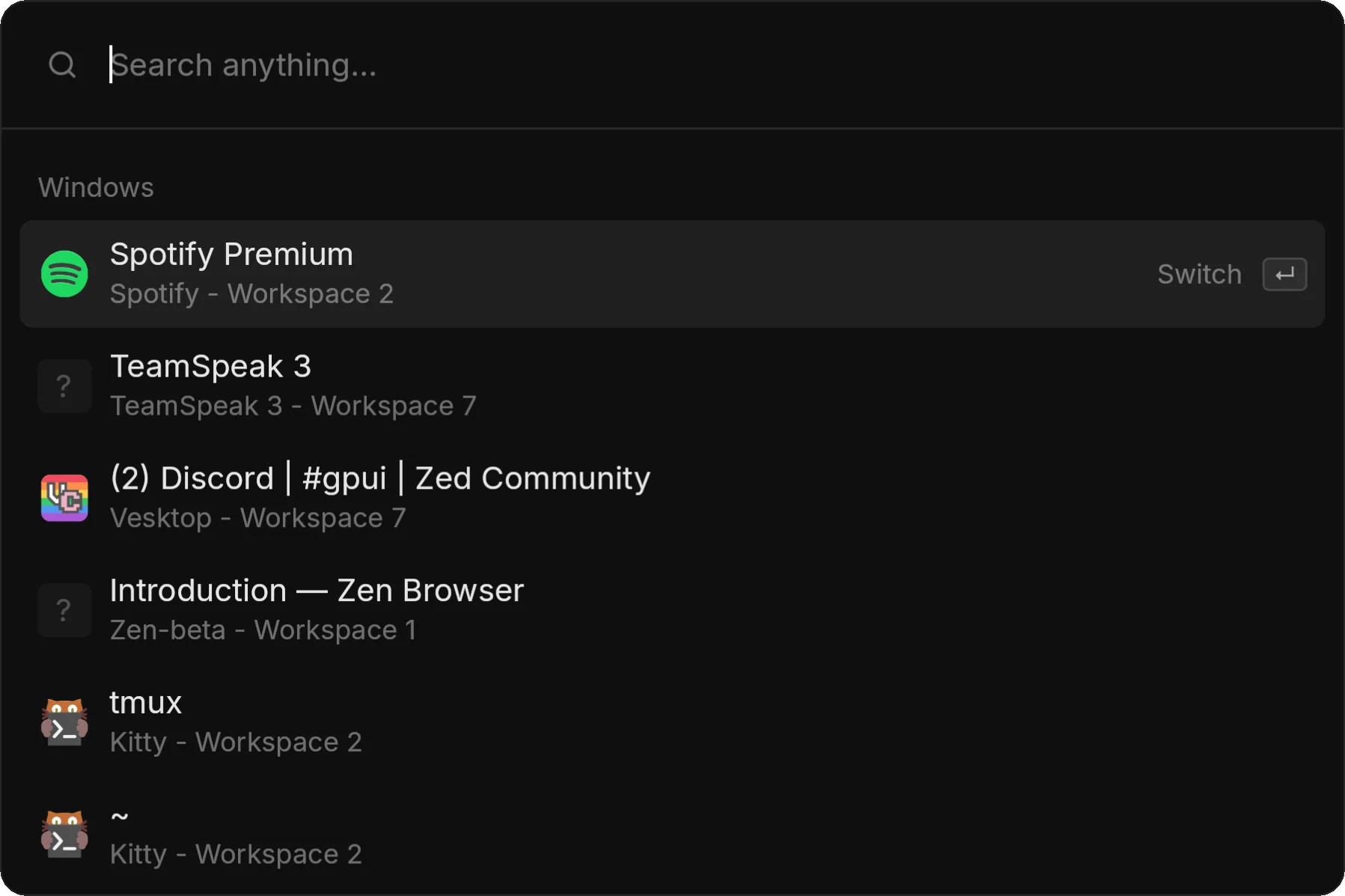
Try it out
- Type to search applications
- Press Enter to launch
- Press Escape to hide